AI dubbing for YouTube, in Chrome: Dub and translate YouTube videos as they play
DubBuddy listens to the video’s sound and dubs it into your language about 3 seconds behind the speaker, with the original voice underneath. It needs no captions, so it also works on videos without subtitles, and on live streams.
DubBuddy is a Chrome extension for computers. It does not run on phones or tablets.
- Works without captions
- YouTube live streams too
- 78 languages to listen in
- No account, no subscription
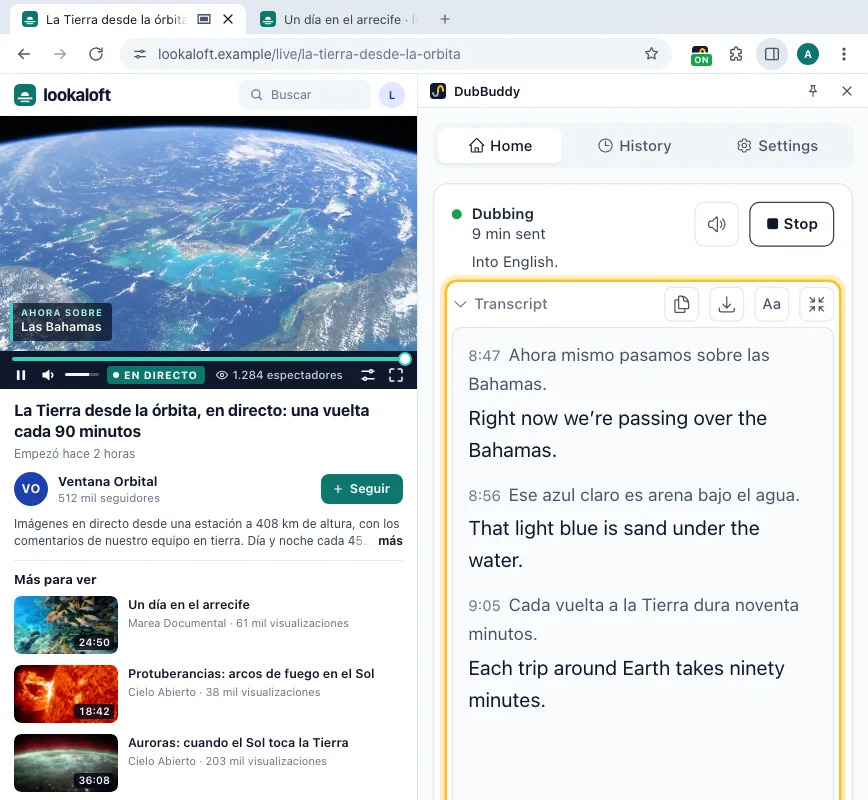
How to translate a YouTube™ video with DubBuddy
- 1
Add DubBuddy and paste a Gemini key
Once: add the extension to Chrome on your computer and paste a key from Google AI Studio on its welcome page.
- 2
Play the video on YouTube
Any video or live stream, with or without captions. If YouTube plays a dubbed audio track, pick the original in the player’s settings first: the translation is closer to what was said.
- 3
Click the DubBuddy icon
The side panel opens. Check the language under “Translate to” and press Start: the dub follows a few seconds behind the speaker. With the panel open, the icon or Alt+Shift+D starts at once.
- 4
Or read instead
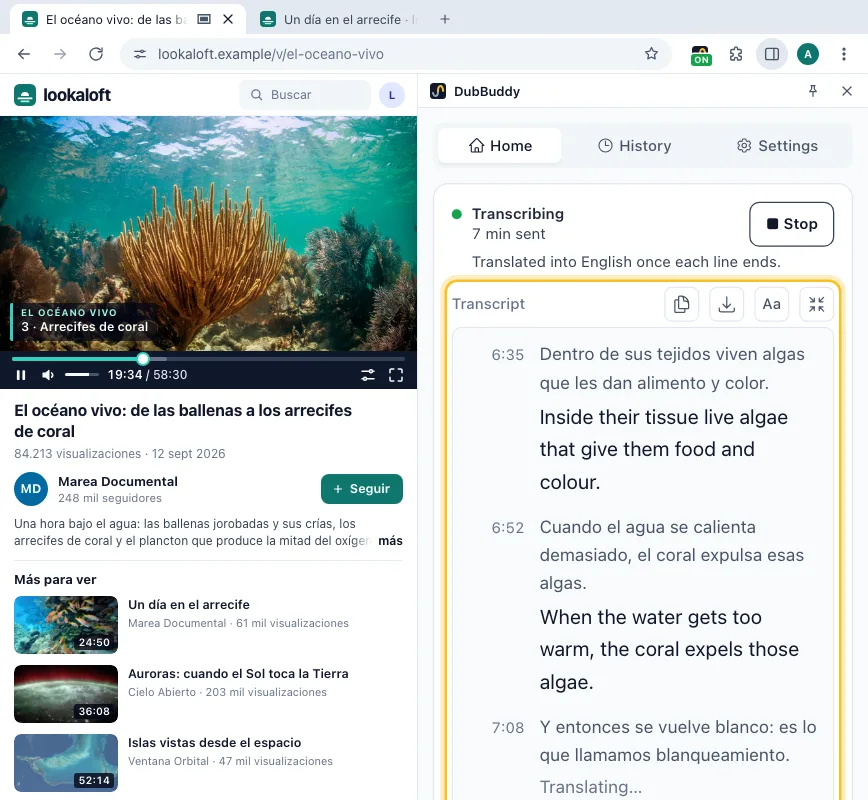
Switch the mode to Transcript before Start to read each line with its translation under it, then copy or save the text.
For the videos YouTube doesn’t dub
YouTube dubs many recorded videos by itself. When it has a dub in your language, use it: it is free and in step with the picture. DubBuddy is for the rest.
| YouTube auto-dubbing | DubBuddy | |
|---|---|---|
| Live streams | YouTube auto-dubbing: Not yet: a pilot is announced for early 2027 | DubBuddy: Yes, a few seconds behind |
| Languages | YouTube auto-dubbing: Into English from about 30, from English into 20; not into Vietnamese, Thai, Turkish or Chinese | DubBuddy: 78 to listen in |
| Long videos | YouTube auto-dubbing: None over 120 minutes | DubBuddy: Up to 150 minutes a session; press Start to go on |
| The original voice | YouTube auto-dubbing: Replaced by the dub | DubBuddy: Kept underneath, at the level you choose |
| When it plays | YouTube auto-dubbing: By default, on videos YouTube has dubbed | DubBuddy: Only when you start it |
| In step with the picture | YouTube auto-dubbing: Yes, made in advance | DubBuddy: About 3 seconds behind |
| Cost | YouTube auto-dubbing: Free | DubBuddy: Billed by Google to your key: about $2.21 an hour at its paid-tier prices on 30 October 2026 (Google’s price list ↗) |
YouTube’s side as its Help page on automatic dubbing describes it, November 2026. ↗
No captions needed
Translate a YouTube video that has no captions
Many videos have no subtitles, or only automatic ones in the speaker’s language. DubBuddy does not read them: it hears the tab, so it dubs and transcribes what is said either way.
In Transcript only, each line appears as it is spoken, with its translation under it if you like. The words stay after Stop: copy them, or save them as a text file, each line with the time since Start. History keeps them on this device too.
How to switch off YouTube’s auto-dubbing
- On one video: open the player’s settings (the gear), then Audio track, and pick the original.
- For every video in a language you understand: add it to your preferred languages in YouTube’s settings, under Playback and performance. Videos first recorded in those languages keep their own audio.
Then start DubBuddy only on the videos you want translated: it stays off until you do.
As YouTube Help describes it, November 2026.
YouTube questions
Sometimes. YouTube auto-dubs many recorded videos, into English from about 30 languages and from English into 20, and you pick the track under Settings, Audio track. It does not dub live streams yet, videos over 120 minutes, or into languages such as Vietnamese, Thai or Turkish. DubBuddy dubs whatever the tab plays, into any of 78 languages.
Play it in Chrome on your computer, click the DubBuddy icon and press Start. DubBuddy listens to the sound, so captions don’t matter. For text instead of a dub, switch to Transcript before Start.
Yes: the dub follows the stream about 3 seconds behind. A session lasts up to 150 minutes; press Start to go on from there. For long streams, Transcript only costs about a quarter of the dub at Google.
Yes. Each line appears as it is said, with its translation under it if you like, and the words stay in the panel after Stop. Copy them, or save them as a text file, each line with the time since Start; History keeps them on this device too. DubBuddy saves text, not subtitle files.
No. DubBuddy is a Chrome extension for computers, and Chrome on phones runs no extensions.
No. DubBuddy is an independent project by YTuong.me, not affiliated with or endorsed by YouTube or Google. It works with your own Gemini API key.
Translate your next YouTube video
Add DubBuddy to Chrome, paste a Gemini key, and click the icon on the video.
DubBuddy is a Chrome extension for computers. It does not run on phones or tablets.