Set up DubBuddy
DubBuddy runs on your own Gemini API key. Google bills that key by the minute of audio DubBuddy sends, at Google’s own prices. DubBuddy charges nothing: no account, no subscription.
What you need
- Chrome 116 or later on a computer (or Edge, Opera, Vivaldi or Brave).
- A Google account, and a Gemini API key from Google AI Studio.
- Billing on for the key’s project at Google (new accounts pay in advance).
Watch the setup
Transcript
DubBuddy runs on your own Gemini API key.
DubBuddy charges nothing: no account, no subscription. You pay Google directly, for what you use: about two dollars twenty-one an hour of dubbing, or sixty cents an hour of transcript, at Google's paid prices.
In Google AI Studio, open API Keys, and click Create API key. Name it DubBuddy, then click Create key.
Copy it with the copy icon in its row, and treat it like a password.
Google's free tier costs nothing, but Google may use that audio to improve its products. With billing on, it doesn't. You add prepaid credit, from five dollars, and the key stops at zero.
To cap the bill, set a monthly spend cap on the Spend page.
Now paste the key on DubBuddy's welcome page. DubBuddy checks it at once. It stays on your device, encrypted, and goes only to Google.
Pin DubBuddy, open a video, click its icon, and press Start.
At Google’s paid-tier prices on 30 October 2026. Google’s price list ↗
Add DubBuddy to Chrome
Click “Add to Chrome” on the Chrome Web Store, then “Add extension”. DubBuddy’s welcome page opens by itself.
Pin it so the icon stays in view: click the puzzle icon in Chrome’s toolbar, then the pin next to DubBuddy. Until you do, the icon is in that Extensions menu.
Coming soon to the Chrome Web StoreDubBuddy is a Chrome extension for computers. It does not run on phones or tablets.
Create your Gemini API key
Open aistudio.google.com/api-keys ↗ and sign in with your Google account.
Create a key. AI Studio asks which project it belongs to and can make one for you.
Copy the key. A new key starts with “AQ.”. Treat it like a password: anyone who has it can spend from your account.
Paste it into DubBuddy
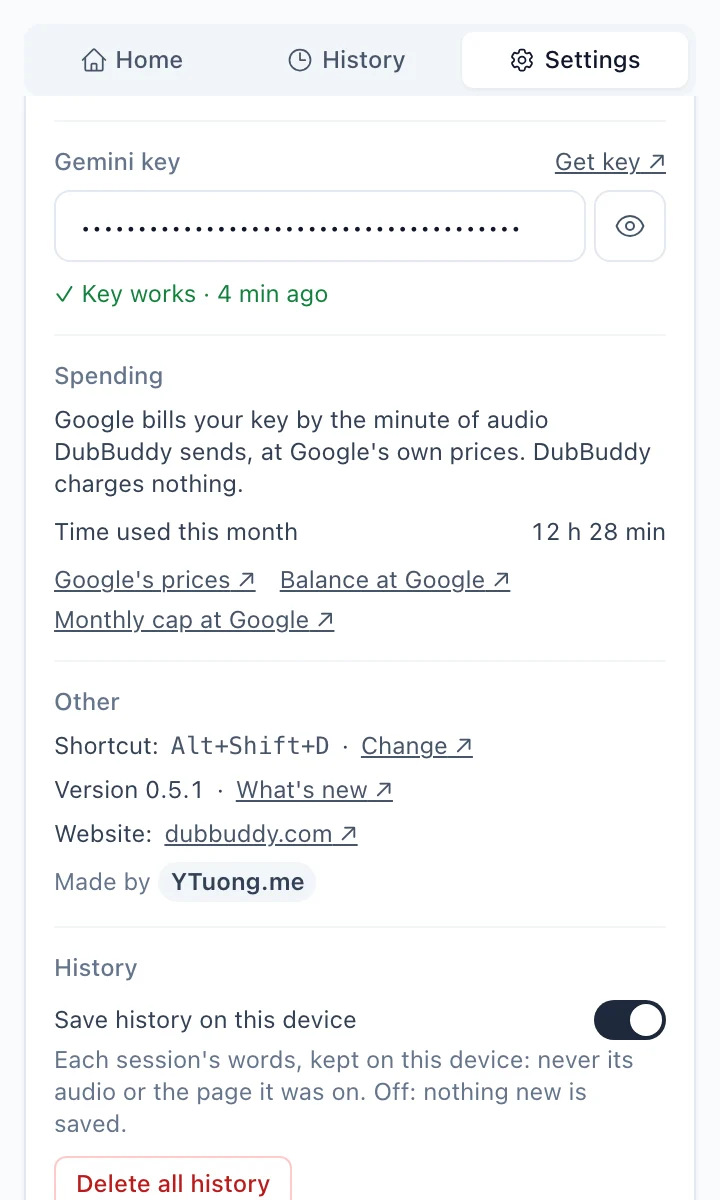
Paste it on the welcome page that opens when you install DubBuddy, or in its side panel: Home shows the field while there is no key, and Settings always does. DubBuddy checks it at once.
The key stays on your computer, encrypted, and goes only to Google.
Turn on billing
Open aistudio.google.com/billing ↗ and set up billing for the key’s project. New accounts pay in advance: you buy credit, and Google draws your use from it.
When the balance is empty, Google stops every key on the account until you add credit. DubBuddy then stops and says “Your prepaid balance at Google is empty”, with a link to the page. Google’s own terms say when unused credit expires.
Cap the bill (recommended)
On aistudio.google.com/spend ↗, set a monthly spend cap for the project. Google counts every use of the project against it, from this browser or not, about 10 minutes behind. When the cap stops a session, DubBuddy says so and links to the page.
Dub your first video
Open a tab where someone is speaking, a video or a live stream, and click the DubBuddy icon. The side panel opens with the mode (Dub or Transcript) and the language under “Translate to”: check them, then press Start. The first words arrive about 5 seconds later.
While the panel is open, the icon starts at once on the tab you click it on; so do Alt+Shift+D (Option+Shift+D on a Mac) and “Dub this tab with DubBuddy” in the page’s right-click menu. Press Stop, or the shortcut, when you are done.
A dub doesn’t need the panel: close it and keep watching. The badge on the icon shows ON while it runs (II while paused), and the icon brings the panel back.

What it costs
Google bills the key for the audio DubBuddy sends while the tab plays:
- A paused video, and silence, are not sent and cost nothing.
- A muted dub is still billed: Google still translates it.
- Google bills the minutes the tab plays, so a video watched at 1.5× costs about a third less, and at 2× about half.
Google sets its prices and may change them; its price list ↗ is the reference. As an example, at Google’s paid-tier prices on 30 October 2026:
- Dub (Gemini 3.5 Live Translate ↗): about $0.037 a minute, about $2.21 an hour.
- Transcript only (Gemini 3.5 Transcribe Live ↗): about $0.55 to $0.70 an hour, depending on how much is said.
- Translate to, in Transcript only (Gemini 3.5 Flash-Lite ↗): about $0.07 to $0.17 an hour more.
DubBuddy shows the minutes sent while a session runs, and the time used this month in Settings. What you have spent is on Google’s own pages, never in DubBuddy.
Without billing: Google’s free tier
A key on a project without billing runs on Google’s free tier. Google lists these models as free there, within limits Google sets (AI Studio shows them), and on the free tier Google may use the audio to improve its products. With billing on, it does not.
In the European Economic Area, Switzerland and the United Kingdom, Google’s paid-use data terms apply to all use. Read Google’s Gemini API terms ↗: DubBuddy does not control them.
What stops a session
When Google stops a session, DubBuddy says why, in its side panel, and links to the page at Google that fixes it:
- The prepaid balance is empty: add credit on the Billing ↗ page.
- The monthly spend cap is reached: raise it on the Spend ↗ page, or wait for the month to turn.
- The key’s daily limit is used up: it resets at midnight Pacific time. On the free tier, turning on billing lifts the free tier’s limits.
DubBuddy also stops a session by itself after 20 minutes of sound with no dub (no words, in Transcript only), and at the 150-minute session limit, with a short tone first. Silence doesn’t count: a paused video or a meeting’s break never ends a session. Press Start to go on; the words stay.
On a Chromebook
DubBuddy works on a Chromebook as in Chrome anywhere else, and asks Chrome to keep its data when the disk runs low. Some Chromebooks forget everything at sign-out, and DubBuddy with them: in Guest mode, and on a school or work device set to wipe its data when you sign out. There, you paste the key again at each sign-in and History starts empty. A shared Chromebook that runs out of space can also remove an account nobody has used for a while.
Browsers
DubBuddy works in Chrome, Microsoft Edge, Opera, Vivaldi and Brave (tested in October 2026), installed from the Chrome Web Store. Click its icon on a video: the side panel opens, with the mode and the language to check, and Start. While the panel is open, the icon starts at once.
- In Edge the panel opens in Edge’s sidebar, on the right.
- In Opera the icon sits in the extensions menu (the cube) until you pin it.
- In Vivaldi the panel opens on the left, as one of Vivaldi’s panels, and the icon opens and closes it: press Start in the panel.
Firefox and Safari don’t let an extension capture a tab’s audio, so DubBuddy can’t run there. A browser without Chrome’s side panel (Arc, for one) can’t show DubBuddy either: its icon says so.
If something does not work
Copy it again from AI Studio, whole, and paste it once more. The Gemini API is not available in every region, and Google refuses keys where it is not.
Chrome lets an extension capture a tab only after you click its icon, press its shortcut or choose its right-click item on that tab. A click inside the side panel does not count.
Chrome’s own pages can’t be captured, and some DRM-protected players give no sound. Make sure the video is playing with sound.
The speech is already in the language you dub into, so there is nothing to dub: you hear the speaker. The audio is still sent and billed. Press Stop, or pick another language under “Translate to” and Start again; left alone, the session stops by itself after 20 minutes with no dub.
Questions
Email support@dubbuddy.com. For a bug, add the debug log: in DubBuddy’s Settings, press “Save debug log” (it never holds audio, the words, your key or any page address).